Android guide and troubleshooting
Updated October 28, 2026 · Google Play release 1.3.10 (24) · Android 7.0 or later.
Install or update
Open PDF ProPanel on Google Play with your purchasing Google account and choose Install or Update. The production release is available in 173 regions. Availability can vary by device and store region.
The refreshed home screen has search, recent files and grouped local tools. The former Advanced Tools tab has been removed. Use the three-dot menu for settings, language, theme, About, help and access management. Your existing documents remain yours.
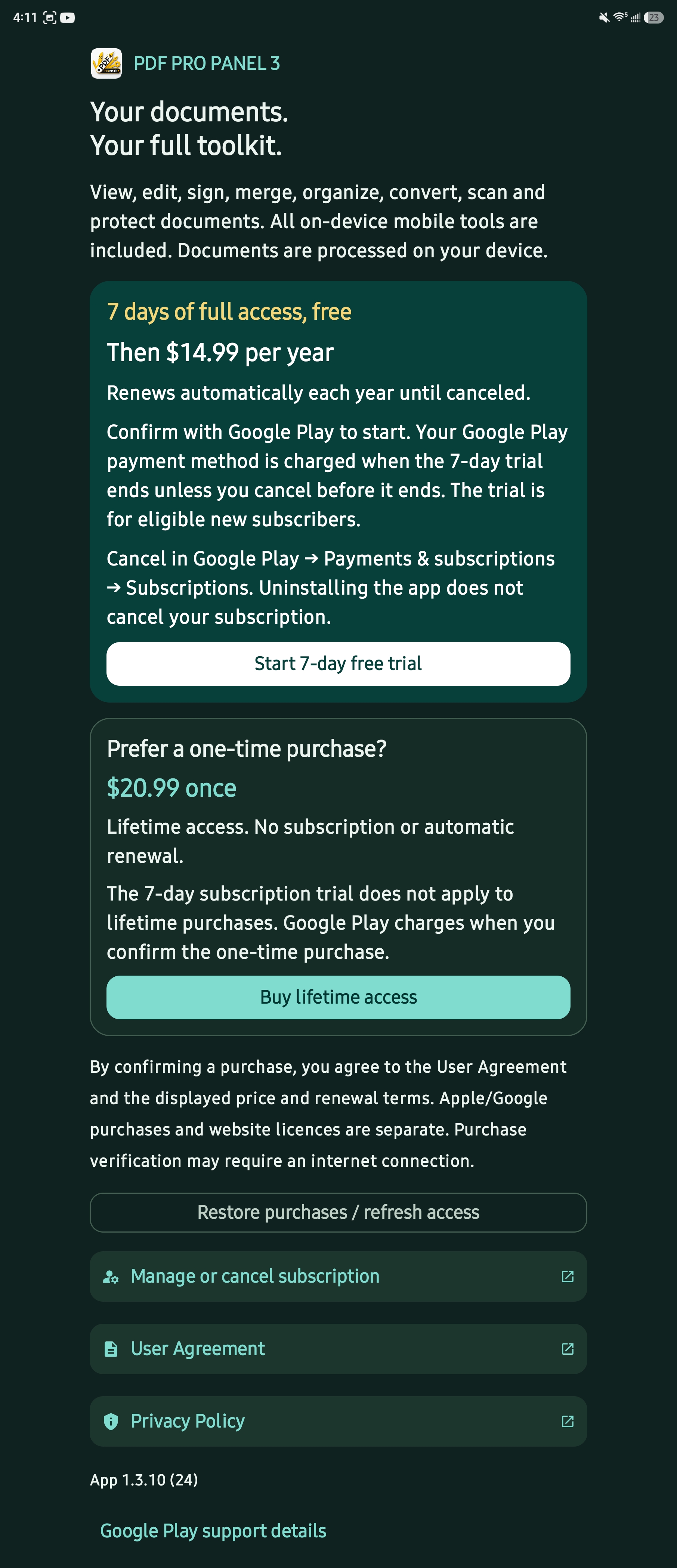
Annual or lifetime access
| Option | Terms |
|---|---|
| Annual subscription | Eligible new subscribers get 7 days free. Then Google Play charges the displayed yearly amount and renews each year until cancelled. US reference: $10.99/year. |
| Lifetime access | A separate one-time purchase, currently US$14.99. Google Play charges when you confirm. It has no automatic renewal and no separate seven-day lifetime trial on Android. |
The Google Play purchase sheet shows your actual local price, currency, trial eligibility, taxes and payment method. Read it before confirming. Website and desktop licences are separate.
Cancel through Google Play → profile → Payments & subscriptions → Subscriptions. Cancel before the trial ends to avoid renewal charges. Uninstalling does not cancel a subscription.
To recover access, use the same purchasing Google account and choose Restore purchases / refresh access. Keep the internet available while Google Play checks the purchase. No website licence key is required for a Google Play purchase.
Already owned access is restored; reinstalling does not create a new introductory trial. In-app test purchases require an approved licence-testing account and Google's no-charge test payment notice.
Library and Continue reading
- Open eBook & Comic Reader from the home tools. The library opens before the file picker.
- Choose an existing book or Continue reading to resume your saved place.
- Choose the open/import action when you want to add a new PDF, EPUB, CBZ, TXT or Markdown file.
- Use the reading controls and themes for a comfortable layout. Return to the library to change books.
If a library file was moved, deleted or its storage permission expired, select it again from the system picker. Download cloud files completely before opening. Password-protected or damaged PDFs may need the correct password or repair.
Work on documents
- Merge: choose PDFs, inspect previews and page counts, reorder or remove entries, then merge in the shown order. Undo helps recover workspace changes. Check the exported page count.
- Organize: use page previews to reorder, rotate or remove pages; review changes and Undo before saving.
- Editor and signatures: open a PDF, choose a tool, add your changes and use Save to export a copy. Additional editing controls remain in the tool menu.
- Compress: select the level and review the result, original size and output size. Mostly-text or already compressed files may not shrink. Keep the original if the result is not useful.
- PDF to Office: check the output in an Office-compatible app. Scans contain images rather than selectable text; OCR may be needed for editable text, and complex layouts require checking.
- OCR and scans: use clear, straight images with readable printed text. Review recognized text before relying on it.
Native document tools process your files on the device. Google Play purchases, access checks, system cloud-file providers and updates can need a connection. Web Pro conversions are a separate online service. Desktop batch add-ons are not mobile purchases.
FAQ and troubleshooting
Prices or purchase options do not load
Confirm you installed through Google Play, have a connection and use the correct store account. Reopen the app and choose Restore purchases / refresh access. Update Google Play if needed. A loading price is not proof that your account is ineligible for a trial. Contact support with the app version, displayed store currency and error; never send a password or full card details.
Google Play offers an older version
Check the Play Store account, device compatibility and update page. Internal testers must opt in using the same account on the phone; joining a tester list and becoming a licence tester are separate steps. Public users can use the production listing directly.
A PDF gives an end-of-file or damaged-file error
Open each source separately to identify an incomplete or unreadable file. Download it again, check that it is not empty, and retry a small merge. An error should not be treated as a successful export.
The reader shows no book or a blank page
Install the current release, return to the library and reopen the file from the system picker. Check it in another reader, then try a short known-good PDF. Report whether the reader controls appear, the file size and app version.
Office output is blank or has little text
Check the source pages for selectable text and try OCR for scans. Verify the exported file is not empty and opens in another compatible viewer. If it persists, contact support with the conversion type and whether text was selectable; send a non-confidential sample only if requested.
Where are saved files and recent items?
Use the destination chosen in the Android system save picker. Recent items are shortcuts; removing one does not delete the original file. A moved file may need selecting again.
Text is clipped or menus look wrong
Update to the current version. The interface supports light/dark themes and larger text. Send support the screen, Android version, font/display size and orientation so the layout can be reproduced.
Related apps and downloadable guide
Download the Android PDF guide · Windows and iOS store apps · Web app · VDRScopePro · Release status